Docs / Visual editing
Visual editing: click, drag & resize
Select any element, edit its text, drag it exactly where you want, nudge with arrow keys, and resize by the corner.
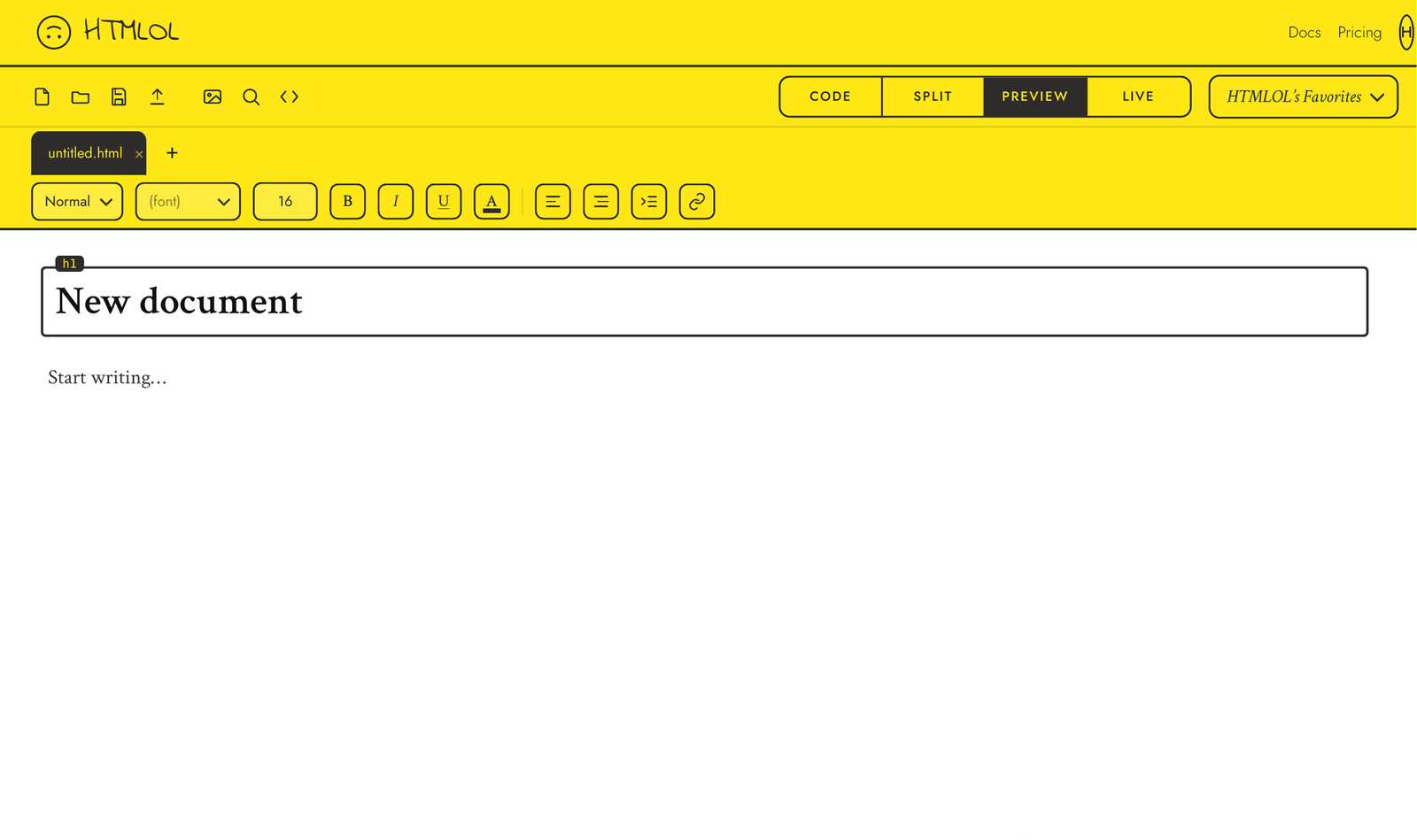
You don't have to hand-edit markup to move things around. In Preview, HTMLOL lets you edit the page directly — click to select, drag to position, resize by a corner, and edit text in place. Every change writes back to your HTML. (Live is a read-only render — switch to Preview to edit.)
Select
Single-click any element to select it. A dashed outline shows what's selected, with small square handles at the corners and a ⠿ reorder handle above it. Hold ⌘ (or Ctrl) and click to select several at once.
Edit text
Double-click a text element to edit it in place. Type your changes, then click away or press Esc to finish. While editing text you can use ⌘+B, ⌘+I, ⌘+U for bold, italic and underline, and ⌘+K to add a link.
Drag to position
Drag a selected element to move it exactly where you want. For fine control, use the arrow keys: each press nudges 1px, and Shift+arrow moves 10px. To change an element's order in the document, grab the ⠿ handle and drag it, or press ⌘+↑ / ⌘+↓.
Resize
Drag any corner handle to resize. Images keep their aspect ratio automatically, so they won't stretch.
Delete
With an element selected (and not in text-edit mode), press Delete or Backspace to remove it.
Every visual change updates your underlying HTML. Flip to Code or Split any time to see exactly what changed — visual editing and hand-coding are two views of the same document.
Touch works too: the visual engine runs on Pointer Events, so on a phone or tablet you tap to select and drag the ⠿ handle to move — swipes still scroll the page. The full shortcut list is in Keyboard shortcuts.