Docs / Cloud files
Cloud files (My files)
Save your work to the cloud and pick it up on any device — open, rename, duplicate, and delete projects. A Premium feature.
By default HTMLOL is local-first: your open tabs live in your browser, so your work is there when you come back — on that browser. Cloud files let you save a document to your account instead, so you can close the tab, switch computers, and pick up exactly where you left off. It's a Premium feature.
Save to the cloud
With a document open, choose Save → Save to cloud from the export menu. The first save creates a cloud project named after the file; saving again updates it in place. The tab stays linked to that project, so Save to cloud keeps pushing your latest changes to the same file.
Saving to the cloud is available on Premium (and Friend) accounts. On other plans the option shows a quick upgrade prompt. Your local tabs keep working regardless — see Plans & billing.
My files
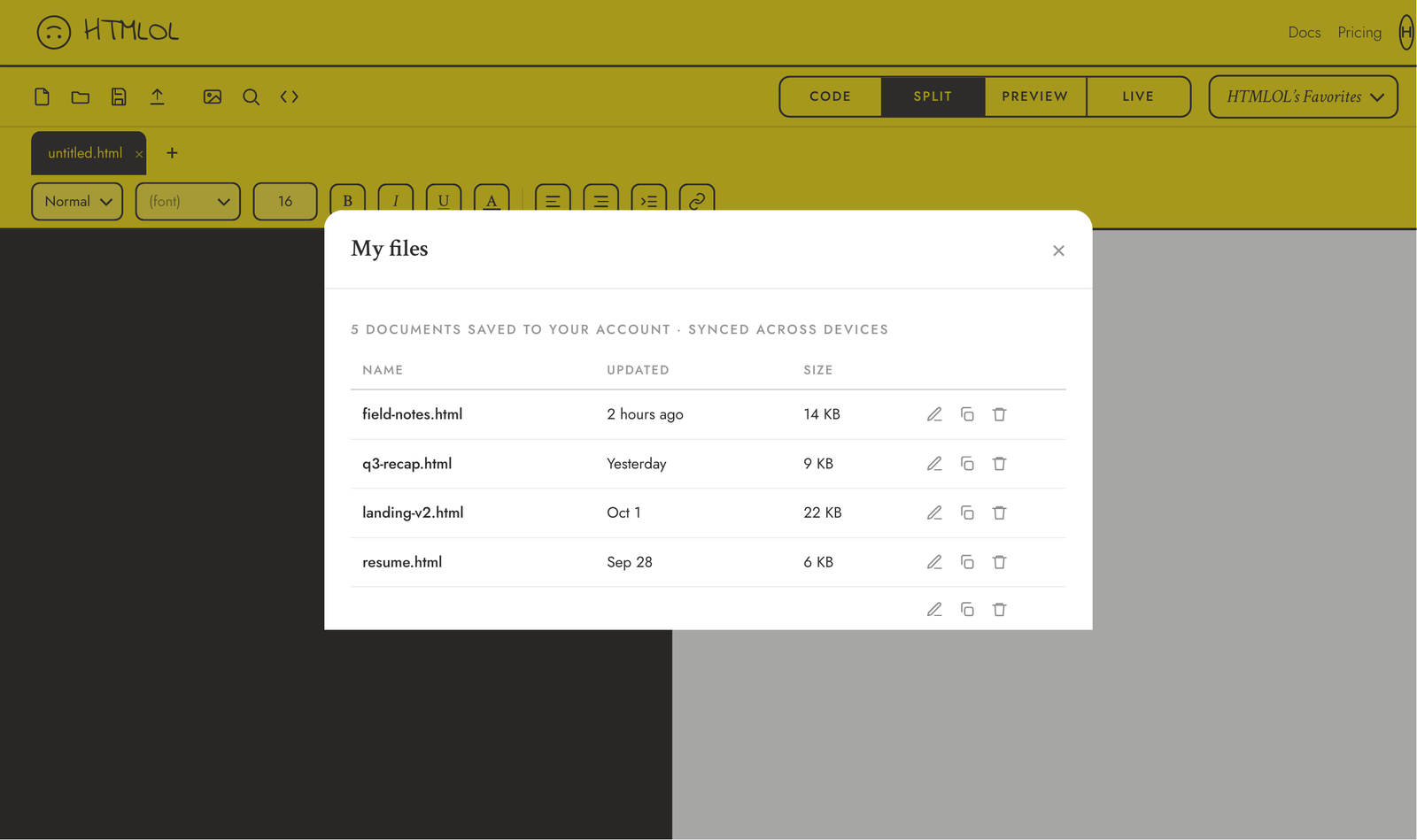
Open My files from the account menu (your initials, top-right) or from the + new-document menu → Open from cloud. You'll see every project you've saved, newest first, with what you can do to each:
- Open — load the project into a tab to keep editing.
- Rename — change the project's title.
- Duplicate — make a copy as a new project.
- Delete — remove it from the cloud for good (with a confirm).
Across devices
Cloud projects are tied to your account, not your browser — sign in anywhere and your files are in My files. There's no limit on how many you keep.
Save to cloud keeps an editable copy for you. Share a link publishes a read-only page for others. Export downloads a standalone file. They're independent — use whichever fits.
v1 is a manual save (no background autosave yet) and keeps the latest saved state (no version history yet). Hit Save to cloud when you want to checkpoint your work.