Docs / Editor views
Editor views: Code, Split, Preview & Live
Four ways to look at your work — raw markup, side-by-side, a clean preview, and a fully interactive render.
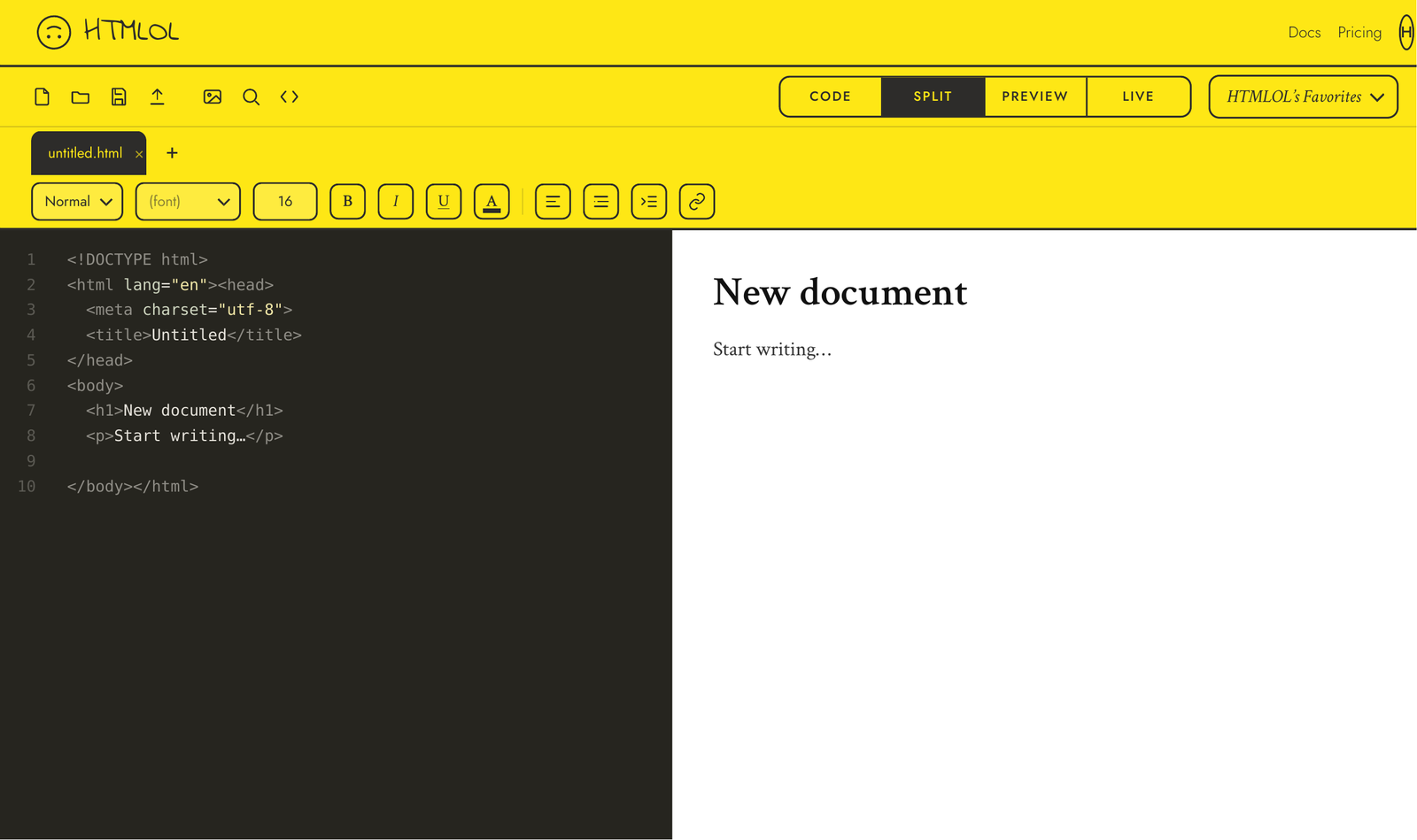
HTMLOL gives you four ways to look at your work. Switch between them with the segmented control at the top of the editor. Each view answers a different question.
Code
The full-width source editor — syntax highlighting, line numbers, and standard editor shortcuts. Use it when you want to focus on the markup. This is also where Find & replace and Reformat source live.
Split
Code and preview side by side. Type on the left, see the result on the right. This is the everyday working view on a desktop.
Split needs room for two panes, so it's hidden on phones. On a small screen, flip between Code and Preview instead — they're one tap apart.
Preview
A clean, full-width render of your page — and the editing canvas. Click an element to select it, drag it into place, resize by a corner, or double-click to edit text; the Element panel appears on the right for type, color, alignment and more. See Visual editing. Scripts and form submits are suppressed here, so nothing runs while you work. Preview is the default when you open a page.
Live
A true-to-live render — your scripts run and links work, exactly as the page will behave once it ships. It's read-only: a faithful preview of the real thing, not an editing surface. To make changes, switch back to Preview. Live also carries the viewport presets (Mobile / Tablet / Desktop) and the Check compatibility button for email checks.
Live renders inside a sandboxed srcdoc iframe, so your JavaScript executes in isolation from the editor — it's read-only. Preview renders the same markup with scripts suppressed and the visual-editing tools active, so you can edit freely without triggering the page's behavior.