Docs / Interface tour
Interface tour
A quick map of the editor: the toolbar, the views, the element panel, and the account menu — what every control does.
Here's the lay of the land. The editor has a toolbar across the top, a tab bar for your open documents, the workspace in the middle (code + preview), the element panel on the right when something's selected, and a slim footer bar at the bottom. This page maps each one.
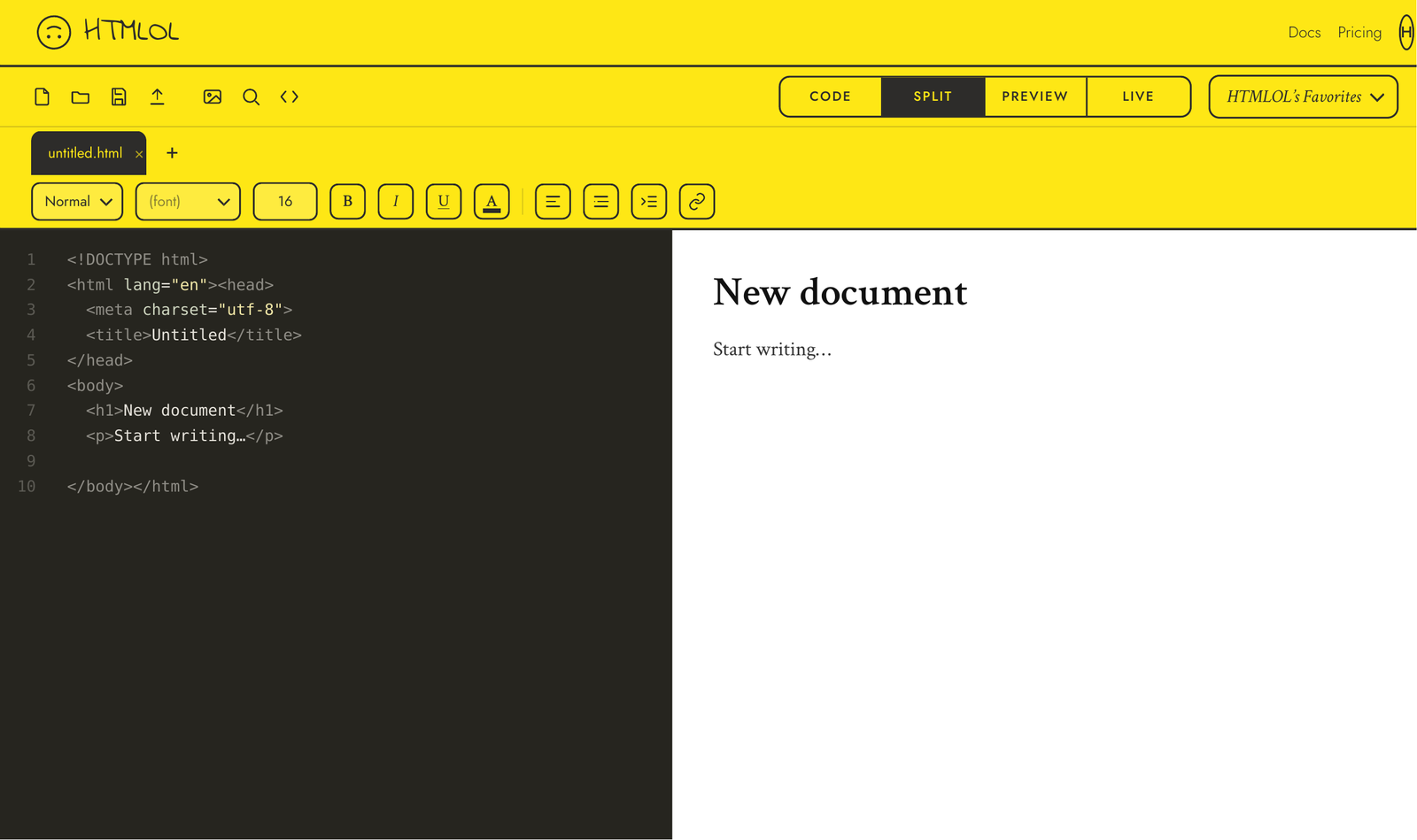
The toolbar
From the top you'll find: the view switcher (Code / Split / Preview / Live — see Editor views), file actions (Open file, Upload HTML, Paste HTML, Insert image), the brand selector, Undo / Redo, Find & replace and Reformat source, and on the right the headline actions: Share, Copy HTML, and Download (HTML or PDF).
The dense toolbar collapses into a ⋯ More menu, and Split is hidden. The essentials — view switching, Share, and Copy — stay one tap away.
Tabs & new documents
Each open document gets its own tab. The + opens a quick chooser — Start with a Template (announcement email, newsletter, or landing page) or Start Blank. First-time visitors land in a fresh untitled.html automatically, ready to type.
The workspace
The middle is where you work. In Code you get the source editor; in Preview you get the editable render where visual editing happens. Live is a read-only true-to-live render (scripts run) — switch to Preview to edit. The view switcher decides what fills this space.
The element panel
Select an element in Preview and the Element panel appears with controls for that element — text style, color, alignment, links, and buttons to insert new blocks. Full details in The Element panel & blocks. On a phone it slides in from the side and tucks away when you're done.
The account menu
Top-right, your initials open the account menu: your plan, Settings (your whole account on one page — email, password, subscription with Manage subscription, preferences, and account deletion), links to Pricing, About and these docs, and Sign out. Signed out, you'll see a menu with Sign in instead — see Signing in.
The footer bar
The slim bar along the bottom carries the ✦ Tutorial button — a guided tour that spotlights each feature and explains its use. It runs once automatically for new visitors, and you can replay it anytime from there.
Open the editor →